April 23, 2026
·
8 min read
Set up Google rank tracking in 15 minutes
A 15-minute guide to building a Google website rank tracker in Sheets—set a tight scope, create a clean results schema, choose a ranking data source, connect a SERP API with Apps Script, and automate daily checks with triggers and logging.


Still checking rankings by hand, screenshotting SERPs, and hoping nothing changed overnight? The problem isn’t effort—it’s that manual tracking is inconsistent, hard to repeat, and nearly impossible to audit when results shift.
In the next 15 minutes, you’ll build a simple Google Sheets rank tracker that pulls positions on a schedule. You’ll set the tracking scope, create a tracker sheet that won’t break, pick a data source, connect it via Apps Script, and automate a daily run with safe re-tries and failure logs.
15-Minute Game Plan
You’re building a working Google rank tracker, not a dashboard fantasy. The outcome is a Google Sheet that pulls positions daily and shows movement like “+3” or “-2” per keyword.
What you’ll build
You’ll build a simple Google Sheets rank tracker for one domain and a keyword list. It checks Google results, stores a daily position snapshot, and flags changes like “up 5” in green.
It has three moving parts:
- A Keywords tab with keyword, location, device, and landing URL.
- A Daily log tab that appends date + position.
- A small Apps Script that runs on a timer.
Once this works, scaling is just more rows and cleaner inputs.
Prereqs checklist
Get these ready so you don’t burn minutes on admin work.
- Google account with Sheets access
- Target domain you control
- 10–50 keywords in a list
- Location and device assumptions
- Apps Script permission allowed
If Apps Script is blocked, your “15 minutes” turns into a ticket queue.
Time-boxed schedule
Work in tight blocks so you reach “working” before you reach “perfect.”
- Create the Sheet tabs and headers (3 minutes).
- Paste keywords and scope columns (3 minutes).
- Add the Apps Script and run once (5 minutes).
- Set a daily trigger and log results (2 minutes).
- Spot-check 3 keywords manually in Google (2 minutes).
Validate early. Debugging a script is easier than debugging assumptions.
Decide tracking scope
Pick scope before you collect data, or your chart will lie to you. “Rank” depends on country, language, and device, even for the same query.
Make four calls:
- Country and city, or “nationwide” only.
- Language, especially for bilingual markets.
- Mobile vs desktop, or both.
- Branded terms vs non-branded terms.
If you mix scopes, you’ll mistake personalization noise for real movement.
Create the Tracker Sheet
You need a sheet that stays legible when you add hundreds of keywords and daily runs. Think “database, not dashboard,” like a clean log you can filter fast.
Sheet tabs to add
A few focused tabs keep raw data separate from analysis as the sheet grows.
- Settings
- Keywords
- Results
- Trends
- Notes
If you ever want automation, this structure avoids messy rewrites.
Settings fields
Put your run controls in one place so scripts and humans read the same truth.
- Domain
- Country
- Device
- Depth
- Run time
- API key placeholder
Lock this tab down early, or “one quick change” becomes silent data drift.
Results schema
Your Results tab is the append-only log that everything else depends on. Use one row per keyword per run, like a CSV export.
Columns to create:
- Date
- Keyword
- Position
- URL
- Title
- Snippet
- Location/Device
If you keep this table tidy, Trends becomes a pivot, not a project.
Conditional formatting
Formatting turns raw ranks into signals you can scan in seconds.
- Create a helper column: Change = current position - previous position.
- Color Change < 0 green, Change = 0 gray, Change > 0 red.
- Highlight blank Position or blank URL in yellow.
- Flag Position > 100 in orange, or bold red.
When colors look wrong, your data is wrong. Fix that first.
Pick a Ranking Data Source
You need a data source before you can rank anything, because different sources answer different questions.
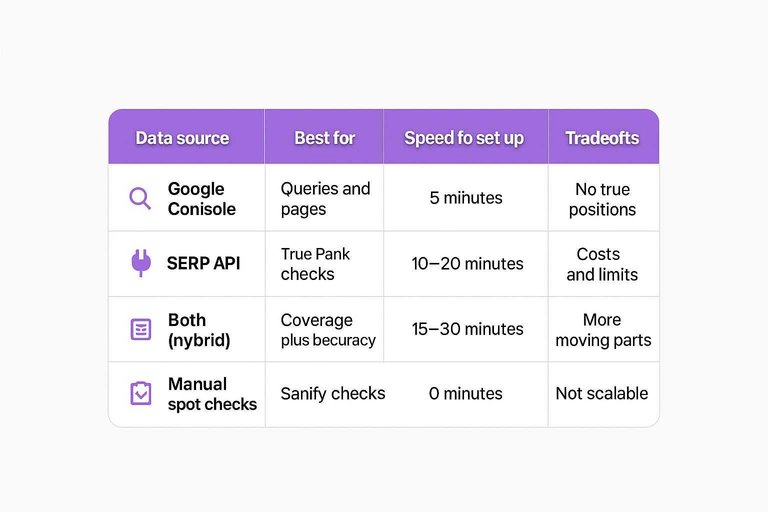
Search Console tells you what Google already sees, while a SERP API tells you where you actually show up.
Use this quick matrix to pick the fastest reliable option (and if you need a broader framework, see this complete SEO guide).
| Data source | Best for | Speed to set up | Tradeoffs |
|---|---|---|---|
| Google Search Console | Queries and pages | 5 minutes | No true positions |
| SERP API | True rank checks | 10–20 minutes | Costs and limits |
| Both (hybrid) | Coverage plus accuracy | 15–30 minutes | More moving parts |
| Manual spot checks | Sanity checks | 0 minutes | Not scalable |
If you care about “position,” use a SERP API; if you care about “demand,” start with Search Console.
Fastest Option: SERP API
A SERP API is the quickest way to get fresh Google ranks without scraping. You send a keyword, you get back results, and your sheet finds your domain.
Choose an API
Pick one provider and confirm it supports the exact knobs you need. If the docs don’t show these parameters, move on.
- Google organic results endpoint
- Country and city targeting
- Language parameter support
- Device type: desktop or mobile
- JSON response with URLs
If you can’t control location and device, your “rank” is just a guess.
Create API key
Create a key once, then treat it like a password.
- Sign up and verify your email.
- Create a new API key in the dashboard.
- Copy it once and store it in a password manager.
- Paste it into a Google Sheets “Settings” tab cell.
- Reference that cell from Apps Script, not hardcoded text.
Keys leak through copy-paste, not hackers, so isolate it early.
Set request parameters
Your request needs consistent rules, or ranks will drift between runs. Decide your query, your domain match rule, your country and language, your device, and how deep to scan results.
Use a strict match like “hostname equals example.com” instead of “URL contains example.com.” Set depth to 100 if you care about page-two keywords.
Cost guardrails
SERP APIs bill per request, so your spreadsheet can accidentally become a cash furnace. Put limits in place before the first scheduled run.
- Cap keywords per run, like 50
- Cache results for 24 hours
- Run once daily, not hourly
- Skip keywords with no landing page
- Add a hard stop on errors
If you don’t design for cost, your first “automation” becomes an invoice.
Add Apps Script Function
You need one small Apps Script layer to call your SERP API and write results back to Sheets. Keep it boring: fetch, parse, match, write, done.
Open Apps Script
Open the script editor from your spreadsheet so the code can read cells and write results.
- Open your Google Sheet.
- Click Extensions → Apps Script.
- Create a new project.
- Name it “Ranker”.
If you can’t name it, you’re in the wrong editor.
Paste core code
Paste a minimal set of functions so each job stays small and testable.
- Add getSettings() to read API key, engine, domain, and location.
- Add fetchSerp(keyword) to call the API and return parsed JSON.
- Add findDomainRank(results) to scan results and return rank + URL.
- Add writeRow(row, rank, url) to write outputs back to the sheet.
When each function does one thing, debugging stops being a guessing game.
Domain match rules
Matching is where rankers lie to you, usually by accident. Decide your rule before you trust any number.
Use one of these matching modes:
- Exact domain: match “example.com” only.
- Include subdomains: match “*.example.com” too.
- URL prefix: match “https://example.com/blog/” only.
Pick the strictest rule that matches your reporting goal, or you’ll chase ghosts.
Test one keyword
Test in the editor first so you don’t debug inside a spreadsheet loop.
- Set one keyword in the sheet, like “best running shoes”.
- In Apps Script, run fetchSerp(keyword) with that keyword.
- Run findDomainRank(results) and verify rank + URL look right.
- Run writeRow() and confirm the cells populate correctly.
If the first keyword is wrong, a thousand keywords will be wrong faster.

Run a Daily Auto-Check
You want rankings to update while you sleep, not when you remember. A daily job that appends to your Results sheet keeps the dataset clean and your trend charts honest.
Create time trigger
Set a time trigger once, then stop thinking about it.
- In Apps Script, open Triggers (clock icon).
- Click Add Trigger and choose your
runDailyCheckfunction. - Select Time-driven and pick Day timer.
- Choose the hour, then save and authorize.
Pick a low-traffic hour, or you’ll debug “random” throttling forever.
If you want to go beyond just scheduling and start building compounding wins, see unlocking daily SEO gains with AI.
Batch processing
Rank APIs and SERP scrapers punish bursts. Process keywords in small chunks, then pause, like a polite client.
Use a simple batching pattern:
- Read all keywords into an array.
- Loop in slices, like 25 at a time.
- Call the API for each keyword.
Utilities.sleep(500-1500)between requests.- Sleep longer between batches.
If checks “sometimes” fail, you’re usually running too fast.
Failure logging
Silent failures rot your data. Log every error to a Notes tab so you can fix patterns, not guesses.
- Write timestamp for every error
- Include keyword and locale
- Capture response code
- Store the raw message
- Add the function name
The Notes tab becomes your early-warning system, not a junk drawer.
Re-run safely
Triggers misfire and scripts get re-run. Your script should treat duplicates like a bug, not “extra data.”
Before writing a result row:
- Compute
todayin your reporting timezone. - Build a key like
today|keyword. - Check Results for that key.
- If it exists, skip or update in place.
Idempotent writes let you re-run confidently when something breaks.
Launch Your Tracker and Lock In Consistency
- Run a single test keyword end-to-end and confirm the tracker records: date, keyword, location/device, ranking URL, and position.
- Turn on the daily time trigger, set a batch size you can afford, and verify failures write to a log (not silently disappear).
- Add cost guardrails (row limits, run limits, and alerts) and document your domain-match rules so results stay consistent.
- After 48 hours, review for anomalies (URL swaps, missing results, sudden jumps) and tighten scope or parameters before scaling to more keywords.
Frequently Asked Questions
- Is a google website ranker the same as Google Search Console performance reports?
- No. Search Console shows average position and query-level visibility for your site, while a google website ranker typically checks real-time SERP positions for specific keywords and locations.
- How accurate is a google website ranker built with a SERP API compared to manual Google searches?
- It’s usually more consistent than manual checks because it avoids personalization, history, and device bias. Accuracy depends on matching the right country/city, device type (mobile/desktop), and language settings in the API.
- Can I use a google website ranker to track local SEO rankings in a specific city?
- Yes, if your data source supports geo-targeting (city/ZIP or lat/long) and device selection. Use a SERP API parameter for location to get rankings that reflect local results instead of national SERPs.
- How often should I run a google website ranker without getting rate-limited or blowing through API credits?
- Most sites do best with daily checks for priority keywords and weekly checks for long-tail keywords. Keep batches small (e.g., 50–200 keywords/day) and monitor API usage limits and error rates.
- What should I track besides rank in a google website ranker to spot real SEO progress?
- Track the ranking URL, SERP features (featured snippet, local pack), and Search Console clicks/CTR for the same keyword set. Those signals help explain why rank moves do—or don’t—translate into traffic.
Turn Rankings Into Growth
A google website ranker is only useful if you can act on the changes it reveals, fast and consistently, without adding more manual work.
Skribra helps you turn ranking insights into daily SEO-optimized articles, auto-images, and WordPress publishing—so your tracker has new wins to measure; start with the 3-Day Free Trial.
Written by
Skribra
This article was crafted with AI-powered content generation. Skribra creates SEO-optimized articles that rank.
Share: