March 8, 2026
·
Updated August 11, 2026
·
9 min read
CMS SEO Pages Not Indexing: Debug the Usual Causes
A practical troubleshooter for CMS SEO pages that won’t index—triage in Google Search Console, remove crawl blocks (robots/noindex/auth), fix indexability signals (canonicals/duplicates/thin HTML/rendering), and improve discovery with sitemaps, internal links, and template-level CMS safeguards.

Your CMS says the page is “published,” but Google won’t index it—and every fix you try feels like guessing. Is it blocked, duplicated, canonicalized away, or simply never discovered?
This troubleshooter gives you a fast, ordered way to debug the usual causes. You’ll start with GSC verification and realistic timelines, then work through crawlability, indexability, discovery, and common CMS template gotchas so you can pinpoint the failure mode and ship a fix that sticks.
Triage First
You need to know what’s broken before you “do SEO.” A page can look invisible because it’s not indexed, not ranked, or not being measured.
Example: someone searches in an incognito window, sees nothing, and calls it “not indexing.”
Verify in GSC
Use Google Search Console to confirm what Google actually did with the exact URL.
- Run URL Inspection on the exact page URL.
- Check the Indexing/Coverage status and the stated reason.
- Note the last crawl date and crawl type.
- Click “View crawled page” and compare rendered HTML.
- If needed, test live URL to see current fetch results.
Treat GSC as the source of truth, not your browser or your rank checker.
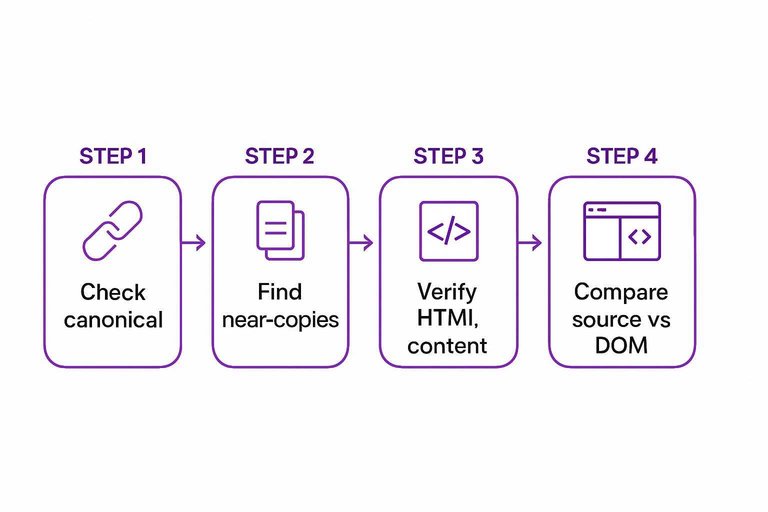
Confirm URL canonical
Canonical problems make “missing pages” look like indexing failures.
- Compare inspected URL to Google-selected canonical.
- Compare Google-selected canonical to user-declared canonical.
- Flag mismatches between declared and selected canonicals.
- Identify parameter URLs that duplicate the same content.
- Check for trailing slash, http/https, and case variants.
If Google picked a different canonical, your page may be indexed somewhere else.
Set expectations
Some pages don’t index fast because Google has no urgency.
New sites, low authority, and “same-as-everyone” content move slowly.
Example: a thin location page with one paragraph and a stock photo can sit in limbo for weeks.
A true block shows up as “noindex,” “blocked by robots.txt,” or a crawl failure in GSC.
Aim for days on strong sites, and weeks on weak ones, before you call it a defect.
Crawlability Blocks
Bots can’t index what they can’t fetch. Your job is to remove anything that stops Googlebot from getting HTML, CSS, JS, and images.
Example: a page “loads fine” in your browser, but Googlebot hits a blocked asset path.
Robots.txt rules
Robots.txt is the fastest way to block an entire site by accident. Check it when only certain CMS paths or parameters won’t index.
- Open /robots.txt and scan for broad Disallow rules.
- Check for blocked query patterns like ?preview=, ?sort=, or ?page=.
- Verify Googlebot isn’t targeted differently than other user-agents.
- Test affected URLs in a robots tester or with Search Console.
- Re-test after deployment and cache refresh.
If a single Disallow matches your canonical URL, indexing won’t happen.
Noindex directives
Noindex issues hide in templates and headers, not just page source. You’re looking for a default that quietly shipped.
- Check meta robots tags on affected templates.
- Check X-Robots-Tag headers on HTML responses.
- Check CMS defaults for drafts, archives, and paginated pages.
- Check conditional logic for “staging” or “preview” modes.
- Check canonical pages versus parameter variants.
One stray noindex on a shared layout can wipe out a whole page type.
Auth and WAF
Security layers often treat bots like attackers. Your browser gets a 200, but Googlebot gets a login wall or challenge page.
Look for 401/403 responses, JavaScript challenges, CAPTCHA interstitials, geo blocks, and rate limits. Check WAF logs for Googlebot IP ranges and “bot score” rules.
If Googlebot can’t get a clean 200 without solving a puzzle, it won’t index you.
Server status codes
Indexing hates instability. A page that flips between redirects, soft 404s, and 5xx will stall.
- Run curl -I on the URL and the canonical target.
- Follow redirects and count hops until the final 200.
- Flag “soft 404” pages returning 200 with thin or error content.
- Check server logs for 5xx spikes and timeouts on bot traffic.
- Fix the root cause, then request re-crawl in Search Console.
A stable 200 beats a clever redirect every time.
Indexability Signals
When a CMS page won’t index, the blocker is often on the page itself. Google is seeing a “don’t pick me” signal, or it’s being nudged toward another URL. If you need a broader framework for diagnosing issues like this end-to-end, see our technical SEO guide.
Canonical misfires
Canonicals are a vote for the URL you want indexed, and CMS defaults often vote wrong. You’re looking for missing self-canonicals, canonicals to a hub page, or canonicals that jump languages.
- View source and find rel=“canonical” on the affected URL.
- Confirm it equals the exact preferred URL, including trailing slash rules.
- Check that paginated, filtered, and parameter URLs canonical to the clean version.
- Audit hreflang clusters and ensure canonicals do not cross languages.
- Re-test in GSC URL Inspection to see Google’s selected canonical.
Fix the canonical and you stop arguing with Google about which URL deserves credit.
Duplicate near-copies
CMSs love making extra URLs for the same content. Those near-copies split signals and invite Google to index the wrong variant.
- Tag pages duplicating category content
- Date archives repeating post lists
- Print views cloning full pages
- URL parameters creating sort and filter variants
- Session IDs and tracking variants multiplying URLs
If you see five flavors of one page, Google will pick one without asking you.
Thin or empty HTML
Google indexes what it can actually read, not what your CMS promises to render later. If the HTML is mostly placeholders like “Loading…” or empty modules, you’re handing Google a blank page.
Check the raw HTML for real main content, not just nav and footer. If the page is JS-only, ensure server-rendered HTML includes headings, copy, and primary links.
Your fastest win is boring HTML that shows up instantly.
Rendering and JS
Rendering bugs look like SEO problems because Google’s crawler doesn’t interact like a user. You need to prove critical content and links exist in the rendered DOM, and in the initial HTML.
- Compare View Source HTML to the DOM in DevTools Elements.
- Run a live URL Inspection and open the rendered screenshot.
- Confirm core text, headings, and internal links appear without clicks.
- Check that blocked JS or CSS isn’t hiding content behind rendering failures.
- Validate that the page returns 200 with content for Googlebot user-agent.
If the crawler can’t see it on first pass, it won’t rank it later.
Discovery and Links
Google can’t index what it can’t reliably discover. In CMS setups, the culprit is often boring: missing links or a messy sitemap saying “nothing to see here.”
XML sitemap hygiene
Your sitemap is your RSVP list for new and updated URLs. If it lies or bloats, Google stops trusting it.
- Confirm every target URL is present in a sitemap file.
- Verify each listed URL returns a clean 200 status.
- Check
lastmodmatches real publish or update times. - Include only canonical URLs, not variants.
- Register the sitemap index in Search Console.
Treat the sitemap like a contract, not a dump.
Internal link gaps
Orphans happen when your CMS generates pages without a crawlable path. You need links Google can follow, not just URLs that exist—especially when scaling content production with AI tools to boost organic traffic.
- Faceted pages only linked by filters
- Paginated lists with missing next links
- JavaScript navigation without
<a href> - Menus or modules marked
nofollow
Add plain HTML links from real hubs, and the “not indexing” issue often disappears.
Pagination pitfalls
Infinite scroll and weak category hubs hide inventory from crawlers. Deep click depth does the same, even when every page is “technically” linked.
Use a strong hub page that links to key subcategories and top items. Pair infinite scroll with crawlable paginated URLs, like ?page=2, exposed via standard anchor links.
If users can scroll forever but bots can’t turn pages, discovery stalls.
For implementation details, follow Google’s infinite scroll recommendations.
CMS Template Gotchas
CMS templates fail quietly, then fail everywhere. One default can noindex 10,000 pages. Like the classic “discourage search engines” checkbox left on after launch. For larger organizations, this is where enterprise SEO governance at scale prevents template mistakes from propagating.
Subsections: [
{
“subheading”: “Environment settings”,
“content”: “Indexing rules often change by environment, and CMSs love hidden toggles. You’re hunting for anything that treats production like staging.\n\n1. Verify staging flags are off in production settings.\n2. Check for password gates, IP allowlists, or login-required middleware.\n3. Inspect robots.txt per environment, not just the template.\n4. Confirm canonicals don’t point to staging or preview domains.\n5. Audit headers for X-Robots-Tag differences by environment.\n\nFix the environment first, or you’ll debug symptoms forever.\n\n \n\n”,
“description”: “Check staging flags, “discourage indexing,” password protection, and per-environment robots/canonical behaviors.”
},
{
“subheading”: “Head tag conflicts”,
“content”: “CMSs assemble the head from themes, plugins, and custom blocks. Conflicts here can block indexing even when the page looks fine.\n\n- Output two canonical tags\n- Mix index and noindex signals\n- Duplicate meta robots tags\n- Override tags via plugins\n- Break head HTML markup\n\nIf your head has two opinions, Google will choose the worst one.”,
“description”: “List common collisions: multiple canonicals, conflicting robots tags, plugin overlaps, and malformed head output.”
},
{
“subheading”: “Facet and filter rules”,
“content”: “Facets can create infinite URLs, and CMS templates often expose them by default. Decide which filters deserve to rank, then encode that decision in templates.\n\nExample: “/shoes?color=black&size=10” might be useful, but “?sort=price&view=grid” usually isn’t. Pick one: canonical back to the main category, set noindex for low-value parameter sets, or use strict parameter handling in your SEO tooling.\n\nIf you don’t choose a policy, your crawl budget will choose one for you.”,
“description”: “Decide which faceted URLs to index; define canonicalization, noindex, or parameter handling policies.”
},
{
“subheading”: “International setup”,
“content”: “International templates fail when signals disagree across locales. You’re validating reciprocity and consistency, not perfection.\n\n1. Confirm every hreflang points to a live, indexable URL.\n2. Ensure hreflang links are reciprocal across all alternates.\n3. Add x-default where you have a global fallback.\n4. Check language-region codes match your actual targeting.\n5. Verify canonicals don’t collapse locales into one URL.\n\nOne wrong canonical can erase an entire locale from the index.”,
“description”: “Validate hreflang reciprocity, x-default, language-region targeting, and canonical consistency across locales.”
}
]
Quick Log Checks
You can stop guessing by matching the symptom to one log line. Your CMS, CDN, and origin logs usually tell the truth first.
| Symptom | Logs to check | What logs should show | Do next |
|---|---|---|---|
| Crawled, not indexed | Access + app | 200, HTML served | Fix thin, noindex, canonicals |
| Discovered, not crawled | Access + robots | Googlebot blocked | Update robots, allow paths |
| Soft 404 | App + response | 200 with error page | Return 404 or real content |
| Redirect loop | Access + CDN | 3xx repeats | Fix rules, canonical target |
| Server errors | Origin + app | 5xx spikes | Fix crash, add capacity |
If the logs disagree with Search Console, trust the logs and reproduce with the same user-agent.
Run a 15‑Minute Indexing Triage and Ship One Fix
- Pick one affected URL and one “healthy” URL, then compare in GSC (URL Inspection, coverage status, chosen canonical, and last crawl).
- Eliminate hard blockers first: robots.txt, noindex/X‑Robots‑Tag, auth/WAF challenges, and non‑200 status codes.
- Validate indexability next: correct canonical, unique main content (not near-copies), complete HTML output, and renderable content if JS is involved.
- Finish with discovery: clean XML sitemap entries, add a direct internal link from a crawlable hub page, and verify pagination/facets aren’t trapping bots.
- If it’s systemic, fix at the template level (environment flags, head-tag conflicts, hreflang/canonicals) and re-test the same URL to confirm the signal changed.
Frequently Asked Questions
- Does CMS SEO still matter in 2026 if Google can render JavaScript and “figure it out”?
- Yes—CMS SEO still matters because default templates, routing, and canonical/robots settings can prevent indexing even when Google can render pages. Clean URL structure, correct canonicals, and consistent server responses usually make the biggest difference.
- How long should I wait before assuming my CMS pages aren’t indexing?
- Most new or updated CMS pages that are discoverable get crawled within a few days and indexed within 1 to 3 weeks. If there’s no crawl activity in 7–10 days (or no indexation in ~3 weeks) it’s usually a CMS SEO configuration or discovery issue worth debugging.
- How do I measure CMS SEO indexing progress without relying on third-party rank trackers?
- Use Google Search Console: check URL Inspection (crawled/indexed status), Indexing > Pages (Excluded reasons), and Sitemaps (discovered vs indexed). Pair it with server/CDN logs to confirm Googlebot is fetching the right URLs and getting 200 responses.
- Can I use a headless CMS without hurting SEO and indexing?
- Yes, headless CMS SEO works when the frontend reliably serves crawlable HTML (SSR or prerendering) and outputs correct canonicals, hreflang, and structured data. Most indexing problems come from client-only rendering, inconsistent URL parameters, or environment misconfigurations.
- What if my CMS generates lots of duplicate URLs—will that stop pages from indexing?
- Often, yes: duplicates dilute crawl budget and cause Google to index only one “chosen canonical” version. Consolidate with consistent internal links, stable canonical tags, and parameter handling rules so Google sees one preferred URL per page.
Turn Fixes Into Indexed Growth
Once you’ve triaged crawlability, indexability, discovery, and CMS template gotchas, the next challenge is publishing consistently without reintroducing SEO issues.
Skribra generates and publishes SEO-optimized CMS content to WordPress with clean metadata, formatting, and images, plus a backlink exchange network—start with the 3-Day Free Trial.
Written by
Skribra
This article was crafted with AI-powered content generation. Skribra creates SEO-optimized articles that rank.
Share: