March 28, 2026
·
9 min read
Set up web traffic SEO tracking in GA4
A step-by-step guide to setting up GA4 for reliable SEO traffic tracking — define goals and naming conventions, create a GA4 property, install tags via GTM with consent and cross-domain support, link Search Console, configure SEO conversions, and normalize channel/UTM data so reports match reality.

If your GA4 “Organic Search” numbers don’t match what you see in Search Console—or conversions seem to vanish after a redesign—you don’t have an SEO problem. You have a tracking setup problem.
This guide walks you through a clean GA4 foundation for SEO: the right property setup, tag installation (including cross-domain and consent), a Search Console connection, and conversion events that actually reflect SEO outcomes. You’ll also standardize UTMs and channel rules so traffic and revenue attribution stop drifting.
Goal and stack
Your outcome is simple: trust your “organic” numbers and trace them to landing pages and conversions. Your stack is equally specific: GA4 for behavior, GTM for tagging, Search Console for queries, Looker Studio for reporting, and BigQuery if you need raw exports.
What you will measure
You’re tracking SEO to answer business questions, not to collect metrics. In GA4, every SEO question should map to one report or exploration you can repeat.
- Organic traffic volume → Sessions and Users with Session default channel group = Organic Search
- SEO entry performance → Landing page report filtered to Organic Search
- SEO outcomes → Key events (conversions) attributed to organic sessions
- Branded vs nonbranded → Search Console queries, blended with landing pages
- Segment performance → Breakdowns by device category and country
If a question can’t be answered with one saved view, you don’t have tracking yet.
Accounts and access
You need the right access before you touch tags or reports. Otherwise, you’ll build workarounds that break later.
- GA4: Admin for property settings, Editor for events and reports
- GTM: Admin to publish containers, Editor to create tags and triggers
- Search Console: Owner or Full user to verify and link properties
- CMS or codebase: Publish rights or merge access for template changes
- Domain/DNS: Access for verification when needed
Give Admin to one accountable owner, not a committee.
Naming conventions
Clean tracking dies in messy naming. Pick a standard once, then enforce it like “prod-web-eu” depends on it.
Use predictable patterns: GA4 property like “Brand | Web | Prod”, streams like “Web - prod - primary”, events like “lead_form_submit”, conversions like “conv_lead_submit”, and audiences like “SEO - nonbrand - US”. Your future self will thank you when Looker Studio filters stay readable.
Implementation choices
Make these decisions early, before you create tags. Changing later usually means data breaks and rework.
- Choose GTM unless you truly need a minimal gtag-only setup.
- Decide if you’re tracking one domain or multiple properties.
- If you have multiple domains, confirm whether users cross between them.
- If they cross, enable cross-domain measurement and align referral exclusions.
- Document the choice in a one-page tracking spec.
Cross-domain is where “organic” gets accidentally credited to your own site.
Create GA4 property
You need a GA4 property before you can trust any SEO traffic numbers. Do this once, then reuse it across reporting and tagging.
- In Google Analytics, click Admin → Create property, name it, set timezone and currency.
- Open the new property, go to Data streams → Add stream → Web, then enter your site URL.
- In the Web stream, copy the Measurement ID (G-XXXX) and save it for later tagging.
- In Admin → Data settings, enable Google signals if your consent model allows it.
- In Admin → Reporting identity, choose Blended if signals is enabled, otherwise Device-based.
Lock these basics in now, because changing identity and signals later shifts your historical attribution.
Install tracking tags
You need one clean GA4 implementation before you trust any SEO traffic report. Use GTM as the single source of truth, then verify hits and remove duplicate tags from themes and plugins.
GTM container setup
A correct GTM setup gives you consistent GA4 data across every template. It also makes later event work boring and reliable.
- Create a GTM container for your site, then install the container snippet.
- Add a GA4 Configuration tag, then paste your Measurement ID (G-XXXX).
- Set the tag to fire on the All Pages trigger.
- Publish the container, then confirm it loads on key templates.
One container, one GA4 config tag. That’s the line that prevents double-tagging.
Cross-domain tracking
If users cross domains, you need one session and one user journey. Otherwise, you’ll “create” new users mid-funnel.
- In GA4 Admin, add your domains under cross-domain measurement.
- In GTM, enable linker settings and list the same domains.
- Add key domains to Unwanted referrals to stop self-referral resets.
- Test a full journey across domains and confirm one session continues.
If your checkout domain shows as a referrer, attribution is already broken.
Consent and privacy
Consent settings change what GA4 can store and how it models conversions. Get them wrong and your channel attribution shifts, even when traffic stays flat.
Configure Consent Mode in GTM, then set region-based defaults for EEA and similar markets. Check GA4 and platform settings that affect IP handling and data collection, and document what you chose for audits.
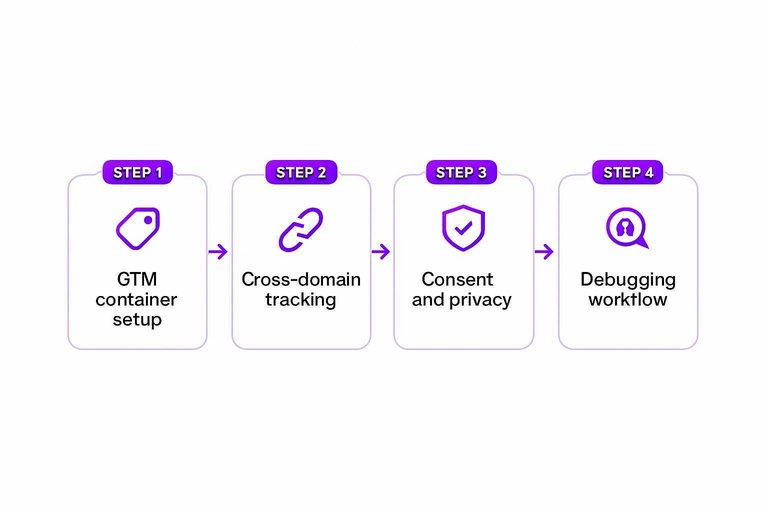
Debugging workflow
Debugging is how you prove tags fire once and only once. Do it before you call anything “organic growth.”
- Use Tag Assistant to confirm the GTM container loads.
- Use GTM Preview to watch tags fire per page.
- Use GA4 DebugView to confirm real-time debug hits.
- Confirm one page_view per page load.
- Confirm key events fire once per action.
If you see duplicates in DebugView, fix the site first. Analysis can wait.
Connect Search Console
Linking Search Console to GA4 puts SEO queries and landing pages next to your engagement data. It’s how you answer, “Which search term drove that signup?” without jumping tools. If you’re building reporting around this connection, see an SEO timeline dashboard in GA4. To go deeper on interpreting SERP performance beyond clicks, review SERP metrics worth evaluating in 2026.
Subsections: [
{
“subheading”: “Prerequisites check”,
“content”: “Before you link, confirm access and pick the property type that matches how you measure SEO. One wrong choice here and you’ll chase “missing data” for hours.\n\n- Verify you’re an Owner in Search Console\n- Use the right property type: Domain vs URL-prefix\n- Confirm GA4 has an active web data stream\n- Ensure the stream is receiving recent page_view events\n- Check you have Editor access in GA4\n\nIf any of these fail, fix permissions first. Linking can’t override access.”,
“description”: “Confirm Search Console property ownership, correct domain/property type, and that GA4 has sufficient data stream activity.”
},
{
“subheading”: “Linking steps”,
“content”: “You’ll link from GA4 Admin, then choose the Search Console property that matches your site.\n\n1. In GA4, go to Admin → Product links → Search Console Links.\n2. Click Link, then choose the correct Search Console property.\n3. Select the GA4 web data stream for the same website.\n4. Review, submit, then wait for reports to populate.\n5. Confirm the link shows as Active in the link details.\n\nPick the wrong property or stream and your “SEO” report becomes someone else’s site. That’s the line that gets crossed.”,
“description”: “Link in GA4 Admin, select the right Search Console property, and validate the association.”
},
{
“subheading”: “Use linked reports”,
“content”: “Once linked, GA4 surfaces Search Console data inside the Reports workspace. You’ll use it to connect intent (query) to behavior (engaged sessions, conversions).\n\nLook for Search Console reports like Queries and Google organic search traffic. Common dimensions include query, landing page, country, device, and date.\n\nWhen you see a query and a landing page together, you’re looking at message-match. Fix that first.”,
“description”: “Explain how to use Queries and Google organic search traffic reports and what dimensions are available.”
}
]
Define SEO conversions
SEO tracking fails when you only count sessions and pageviews. You need GA4 key events tied to outcomes, like “demo_request” or “purchase,” so organic traffic has a scoreboard. For a broader framework on tying organic traffic to outcomes, see our complete SEO guide.
Choose conversion events
Pick a small set of outcomes that map to revenue or sales velocity. If you can’t explain who follows up, it’s not a conversion.
- Lead form submit
- Signup or account created
- Purchase completed
- Phone or email click
- Demo request
If you track more than six, you’ll optimize reports instead of outcomes.

Create events in GA4
You can create events from existing hits, or send cleaner ones via GTM. Either way, you must validate counts before you trust them.
- Audit existing events and parameters in DebugView.
- Create a GA4 event (Admin → Events) or implement in GTM.
- Mark the event as a Key event in GA4.
- Trigger the action yourself and verify real-time counts.
- Check volume after 24 hours for sampling or delays.
If verification feels boring, good. Boring events are the ones you can bet on.
Value and attribution
Assign values where you can, like average lead value or plan price, so SEO wins aren’t “just traffic.” Then be careful comparing organic to paid, because attribution models shift credit between channels.
A $200 lead under data-driven attribution might look like $120 under last-click. That’s not an SEO problem. It’s the model.
Avoid noisy events
Some events fire too easily and inflate “conversion” rates. Clean them up with conditions, deduping, or exclusions.
- Page_view or scroll depth
- Time on page milestones
- Chat widget opens
- Newsletter popup closes
- Internal tool clicks
If the event can happen by accident, it will. Filter it now, or argue about it later.
Normalize channel data
Organic traffic only stays “organic” if your inputs behave. One bad UTM or stray referral can turn SEO into “Email” or “Referral” overnight—so treat this like part of your checklist for streamlining SEO content.
UTM rules for SEO
UTMs are overrides, so they can erase organic attribution fast. Your job is to use them only when you mean to replace SEO.
Do:
- Leave SEO landing URLs untagged
- Use UTMs for true campaigns
- Standardize source and medium values
- Document exceptions for partners
Don’t:
- Add UTMs to internal links
- Tag canonical SEO pages “for tracking”
- Mix utm_medium values randomly
- Let vendors invent naming schemes
Exceptions to document:
- Newsletters: utm_source=newsletter, utm_medium=email
- Affiliates: utm_source=partnername, utm_medium=affiliate
If a URL has UTMs, GA4 will believe them over reality, every time.
Unwanted referrals
Some “referrals” are just infrastructure, not marketing. Exclude them or they will steal credit from organic sessions.
- List domains like Stripe, PayPal, Okta, Auth0, and SSO providers.
- Add them to GA4 Admin → Data streams → More tagging settings → List unwanted referrals.
- Add cross-domain hops like checkout.yourdomain.com or app.yourdomain.com if misconfigured.
- Test a full journey and confirm the session source stays organic.
If you see your payment provider in top referrers, your SEO reporting is already bleeding.
Channel group validation
Default Channel Grouping is “good enough” until it isn’t. Validate Organic Search now, before dashboards harden.
- Check Organic Search uses medium exactly “organic”
- Confirm Google and Bing map to Organic Search
- Verify branded clicks still land in Organic Search
- Create a custom channel group for edge cases
- Compare totals between default and custom groups
When channels drift, teams argue about performance instead of fixing the data.
Lock in a tracking baseline you can trust
- Verify collection end-to-end: use DebugView/Tag Assistant, confirm cross-domain sessions, and check consent behavior in a real browser.
- Sanity-check reports: compare GA4 Organic Search landing pages vs Search Console queries/pages, then reconcile expected differences (clicks vs sessions).
- Freeze standards: document naming conventions, UTM rules, and channel grouping decisions so future campaigns don’t fragment “organic.”
- Operationalize SEO conversions: review event volume monthly, remove noisy triggers, and keep a short list of primary SEO KPIs tied to business outcomes.
Frequently Asked Questions
- How do I measure SEO web traffic in GA4 without losing historical Universal Analytics data?
- You can’t migrate UA data into GA4; keep UA exports (CSV/BigQuery/Sheets) for year-over-year comparisons and start GA4 tracking immediately so you build a clean baseline going forward.
- Why is my SEO web traffic lower in GA4 than in Search Console, and which one should I trust?
- GA4 reports sessions/users while Search Console reports clicks/impressions, so the numbers won’t match; use Search Console for search demand and queries, and GA4 for on-site behavior and conversions after the click.
- How long does it take for SEO web traffic to show up in GA4 and Search Console reports?
- GA4 traffic appears within minutes (Realtime) and is usually fully processed within 24 hours, while Search Console performance data typically lags 24–48 hours before queries and landing pages populate.
- What GA4 reports are best for monitoring web traffic SEO performance month over month?
- Use Reports → Acquisition → Traffic acquisition filtered to Organic Search, plus Landing page and Pages & screens to track organic landing-page trends; for repeatable month-over-month tracking, build a Looker Studio dashboard with date comparisons.
- Can I track SEO web traffic at the keyword level in GA4?
- Not reliably—most organic keywords show as “(not provided)” in GA4; use the GA4 + Search Console integration (or Search Console directly) to analyze queries and then connect them to landing-page engagement and conversions.
Turn Tracking Into Growth
Once GA4, Search Console, and conversion tracking are set, the next challenge is producing consistent SEO content that actually moves those metrics.
Skribra generates and publishes SEO-optimized articles to keep your organic traffic climbing—plus you can start with a 3-Day Free Trial.
Written by
Skribra
This article was crafted with AI-powered content generation. Skribra creates SEO-optimized articles that rank.
Share: