October 11, 2026
·
10 min read
11 Google Search Results Page Errors That Crush Organic CTR
This SERP-appearance troubleshooter shows what to check when organic CTR drops for reasons you can’t fix with copy alone — Performance report triage, title link & snippet rewrites, nosnippet/max-snippet/data-nosnippet suppression flags, missing favicon/site name/sitelinks trust signals, and hard CTR blockers like canonical/hreflang mix-ups, rich-result eligibility losses, and warning labels.
You’re getting impressions, but the clicks suddenly fall off—and every quick fix you try feels like guesswork.
When CTR collapses, it can mean lost leads, wasted content time, and a reporting headache you can’t explain to stakeholders. This guide gives you a repeatable triage: start by isolating exactly which pages/queries/devices broke in Google Search Console, then use a symptom map to match what you see on the Google Search results page (title, snippet, brand signals, or warnings) to the most likely cause and the next check before you edit anything.
CTR Drop Triage
A CTR drop is only a “SERP appearance error” when you’re still earning impressions at about the same rank, but the way your result is shown on the Google Search results page changed (or became eligible/ineligible for a feature). If impressions fell because you lost position, or clicks shifted because you’re now ranking for different queries, that’s not a SERP appearance problem—you’re diagnosing the wrong thing.
Isolate the collapse
- In Google Search Console, open the Performance report and set a date comparison (the “before” period vs the “after” period).
- Sort by clicks, then look for the biggest CTR deltas with impressions still present.
- Click into a single outlier and switch between Queries and Pages to find the specific query→URL pairs where CTR broke.
- Add Device and Country filters to see whether the collapse is isolated to a device type (desktop vs mobile) or to specific locales.
- Use the branded/non-branded query filter (it includes up to 16 months of history) to see whether the damage is concentrated on brand demand or non-brand discovery.
11-error symptom map
| SERP symptom | Likely cause | Search Console check | First change to test |
|---|---|---|---|
| Title text not what you wrote | Google-generated title link | URL Inspection tool | Align on-page heading/title |
| No snippet shown | nosnippet directive | URL Inspection tool | Remove nosnippet |
| Snippet is cut off hard | max-snippet cap | URL Inspection tool | Raise/remove max-snippet |
| Certain section never appears | data-nosnippet block | URL Inspection tool | Remove data-nosnippet |
| Source/site name looks wrong | Auto-generated site name | Home page inspection | Add WebSite structured data |
| Favicon missing/odd | Favicon not eligible | Live SERP + crawl check | Fix favicon URL + format |
| Sitelinks disappeared | Sitelinks are automated | Performance: brand queries | Improve internal link structure |
| “Wrong” URL shows in results | Canonical choice differs | URL Inspection: Google-selected | Fix canonicals/redirects |
| Rich result vanished | No rich result guarantee | Enhancements reports | Fix markup + policy issues |
| Warning label on result | Security warning label | Security Issues report | Clean issue, request review |
| Pages stop showing at all | Manual action | Manual Actions report | Remediate + request review |
User UI detour
- The “Google Search page” is the results screen you see after searching at google.com (or in the Google app). That results screen is what SEOs mean by a SERP.
- Your “Saved” pages live in your Google account’s saved items (often surfaced as Saved/Collections in Google apps, or as bookmarks in your browser). They’re not part of your site’s Search Console data.
- To open Google Search, use google.com, the Google app, or your browser’s address bar search—none of those entry points change how your site appears in search results.
Title & Snippet Rewrites
When Google rewrites your listing text on google search pages, it’s usually responding to conflicting or inaccessible signals—not “ignoring SEO.” A title link (the clickable title shown for a web result in Google Search; generated automatically from multiple page and off-page signals) and a snippet (the description text under a result; generated from page content and sometimes your meta description when it’s a better summary) are both algorithmic outputs.
Diagnose and fix rewrites in priority order
-
Check crawl access first (because no crawl = no on-page signals).
In Search Console’s URL Inspection, verify Google can fetch the HTML. If a page is blocked by robots.txt, Google may still index it but not see the content—and then it can fall back to off-page text (like anchor text from other sites) to generate the title link. -
Make your “title candidates” agree across the page.
Google’s title-link system is fully automated and draws from multiple sources, including the<title>element, the main visual title on the page, heading elements (like<h1>), andog:title. If those disagree (or your<h1>is generic while the<title>is specific), you’ve given Google a reason to pick something else. -
Remove template noise that looks like a better title than your real one.
Titles like “Home,” “Product,” “Blog,” or a sitewide slogan repeated in the most prominent heading often win the “main visual title” contest. Make the primary on-page heading describe the page uniquely, and keep the<title>aligned with it. -
Treat snippet mismatches as a content extraction problem, not a meta description problem.
Google can generate snippets from the page content and will sometimes use your<meta name="description">only if it’s a more accurate summary. If Google keeps pulling an odd sentence, rewrite the on-page passage it’s likely extracting (the query-matching line), then make your meta description say the same thing in cleaner language—see this SEO guide for best practices. -
Re-check the exact query→URL pair that broke.
Title links and snippets can shift by query. Validate on the same search that lost CTR, then iterate—one page, one fix—until the SERP text stabilizes.
Snippet Suppression Flags
Snippet suppression is the “you told Google not to show it” category: nosnippet / max-snippet / data-nosnippet are controls that can remove snippets, limit snippet length, or exclude specific page sections from being used in snippets.
-
Confirm it’s a snippet problem on the exact URL. In Search Console, open URL Inspection for the query→URL pair that lost CTR and check whether the result is showing no snippet, a hard-truncated snippet, or missing a specific section.
-
Check the rendered HTML Google saw (not your browser view). In URL Inspection, review the crawled HTML and search for a meta robots directive like
nosnippet(snippet removed) ormax-snippet:[number](snippet length capped). -
Scan for selective suppression. In the HTML, look for
data-nosnippeton containers that might hold your best summary text; that attribute blocks those sections from being used in snippets. -
Verify headers match your intent. Check response headers for an
X-Robots-Tagthat appliesnosnippetormax-snippetat the HTTP level (often added by CDNs, apps, or edge rules). -
Remove the directive and re-test. After changing HTML and/or headers, run a Live Test in URL Inspection to confirm Google now sees the updated output before you rewrite any copy.
Trust Signals Missing
Trust/identity issues show up as “I don’t recognize this source” SERP changes: the site name label looks wrong, the favicon is missing/odd, or sitelinks disappear on branded queries—even if your ranking position didn’t move.
-
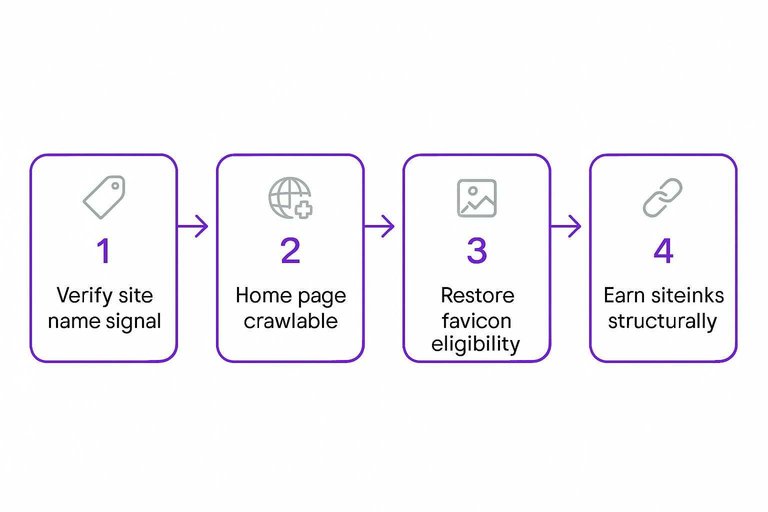
Verify your site name signal. Your site name (the source/brand label Google shows for a result, separate from the clickable title link) is generated automatically from your home page and references to it on the web; if it’s wrong, add WebSite structured data to the home page to indicate your preference (see Site Names in Google Search).
-
Make sure the home page is crawlable. Google requires the WebSite structured data to be on the home page, and the home page has to be crawlable; also note Google supports only one site name per domain or subdomain (not per subdirectory).
-
Restore favicon eligibility. Your favicon (in Search results) (the small site icon shown next to results) is only eligible if Googlebot can crawl your home page and Googlebot-Image can crawl the favicon file.
-
Meet favicon format requirements. Use a stable favicon URL, keep it square (1:1), and meet size thresholds: 8×8px minimum, with Google recommending larger than 48×48px.
-
Stop trying to “set” sitelinks—earn them structurally. Sitelinks (extra links clustered under a main result) are automated: Google’s systems analyze your site’s link structure and show sitelinks only when they’re useful and relevant to the query. There isn’t a Search Console setting that lets you directly pick which sitelinks show.
If the source label, icon, or sitelinks make your result look like a different (or unknown) site, users click the next option—so make sure your brand identity is clear and consistent on pages like your About page.
Hard CTR Blockers
These are the “no one clicks anyway” failures on google search pages: Google is showing the wrong URL, your enhancements never appear, or a warning/penalty overrides your snippet.
-
Confirm Google picked the wrong URL (canonical + locale).
A canonical URL (the URL Google chooses as the primary representative from duplicates; your canonical signals are hints, not absolute rules) is visible in Search Console’s URL Inspection under Google-selected canonical. If it’s not the URL you want, align the signals Google uses for canonicalization—redirects, sitemap URLs, HTTP vs HTTPS, and your rel=“canonical” annotations—because Google may still choose differently when those disagree. Also remember duplicate URLs generally aren’t shown unless they’re alternate URLs for devices or languages (see URL canonicalization). -
Fix “wrong country/language result” with hreflang (not redirects).
If the wrong locale version is winning impressions, add hreflang (annotations that help Google show the correct language/region version of a page in Search results) across the language/region set, and don’t auto-redirect users based on a guessed language. -
Treat missing rich results as eligibility + policy, not just markup.
Structured data / rich results (machine-readable markup that can make a page eligible for enhanced SERP features, but does not guarantee those features will appear) should be validated in the relevant Search Console Enhancements report, but Google still doesn’t guarantee rich results even when markup tests clean. Use the Performance report’s Search appearance dimension to see whether a rich-result type stopped getting impressions, and expect Search Console validation to take 2 weeks or more after fixes. -
Rule out penalties that override the whole listing.
A Manual action (a Google Search penalty applied after human review; can result in some or all of a site not being shown in Search results) is confirmed in Search Console’s Manual Actions report. A structured data manual action specifically removes rich-result eligibility without changing web ranking—so you’ll “rank the same” but lose the enhancement until you remediate and request review. When this hits at scale, Skribra’s Search Console monitoring plus automated re-titling/re-linking workflows let teams spot which URLs are slipping and roll out consistent fixes faster. -
Clear safety labels—and know what’s no longer fixable.
A Security issue warning label (a warning shown in Search results or as a browser interstitial when Google believes a site is hacked or could harm users) is surfaced in the Security Issues report; Search may show labels like “This site may harm your computer” or “This site may be hacked,” and updates can take a day or two to propagate through systems. Finally: if what “vanished” was the FAQ rich result feature, stop debugging—Google’s deprecation notice says it will no longer appear in Google Search starting May 7, 2026.
Diagnose the SERP, not the copy
When impressions hold but clicks collapse, treat it like a display failure on the results page—not a writing problem—and start in Google Search Console, not in your CMS. Isolate the specific query→URL pair (and the device/country where it broke), then match what you see in the live result to the right check: URL Inspection for title/snippet suppression and canonicals, Enhancements for rich-result eligibility, and the Manual Actions/Security reports for hard blockers. Only after you can point to the exact signal that changed should you touch titles, headings, directives, or markup. Your first move: pick the single biggest CTR delta with steady impressions and run it through URL Inspection before you edit anything.
Frequently Asked Questions
- How do I get my Google Search page back to normal after my results look different?
- If you mean your site’s listing changed on Google search pages, compare “before vs after” in Google Search Console and isolate query→URL pairs where impressions stayed but CTR dropped—then investigate the specific SERP element that changed (title link, snippet, site name/favicon, sitelinks, rich result, or warning). If you mean the Google UI changed in your browser/app, that’s a product/UI issue, not an SEO problem.
- Is the meta description the same thing as the snippet on Google search pages?
- No—Google generates the snippet algorithmically and may ignore your meta description when it can extract a better match from on-page text. Treat snippet mismatches as a content-extraction problem (what line Google is pulling), not a “rewrite the meta description” task.
- Can I choose which sitelinks show under my homepage on Google search pages?
- No—Google’s sitelinks are automated and there’s no setting in Search Console to pick them. The controllable lever is your site structure and internal linking so Google can understand your key pages for branded and navigational queries.
- If my structured data is valid, will Google show a rich result on the search results page?
- No—valid structured data only makes a page eligible, and Google explicitly does not guarantee a rich result will be shown even when markup tests clean. Use Search Console’s Enhancements reports and the “Search appearance” performance view to verify whether the rich-result type is actually getting impressions.
- Why is Google showing the wrong country or language version of my page in search results, and what fixes it?
- Fix locale mix-ups with hreflang annotations across your language/region URL set so Google can link to the correct version in search results, and don’t auto-redirect users based on presumed language. Validate the winning URL and query in Search Console before changing templates or copy.
Turn SERP fixes into growth
Once you’ve isolated the query→URL pair and the exact SERP change, the next challenge is keeping titles, snippets, and internal links consistent as content scales.
Skribra plans, writes, publishes, and maintains SEO articles on your site—using Search Console data to refresh titles, facts, and links so performance doesn’t drift between audits, with a 3-Day Free Trial.
Written by
Skribra
This article was crafted with AI-powered content generation. Skribra creates SEO-optimized articles that rank.
Share: