October 22, 2026
·
9 min read
How to Run a Technical SEO Audit: Tools and Setup
A step-by-step guide to running a technical SEO audit that produces developer-ready proof — Domain property verification and a pre-audit access checklist, Screaming Frog setup for a Google-like crawl, URL Inspection and performance validation to confirm what’s actually rendered, robots.txt/sitemaps/Crawl Stats checks, and a findings-to-tickets table so nothing gets lost in translation.

You’re trying to audit a real site, but the “technical SEO checklist” approach falls apart the moment you hit missing access, blocked areas, or pages that behave differently for bots than they do for humans.
Get it wrong and you’ll ship tickets that don’t map to what search engines can fetch, render, and index—or you’ll miss the issues that are actually holding templates and sections back. This guide gives you a repeatable setup: the access you need first, a crawl configuration that mirrors reality, Google-native validation steps, and a clean way to turn evidence into actionable dev tickets.
Pre-audit access
Before you crawl anything, lock down scope and access so every finding is verifiable. In seo technical work, crawlability (whether a crawler can fetch a URL and its critical resources) and indexability (whether the page is eligible to be stored in a search engine’s index, often controlled by directives like noindex and by crawler access) are the two gates you’re testing—without access, you can’t prove which gate is failing.
If you’re budgeting headcount, decide up front who owns each access-dependent step: adding a DNS TXT record, exporting Search Console data, pulling raw server logs, and approving robots.txt/sitemap changes. A technical audit stalls when the crawl is ready but the last permission (or approver) isn’t.
Verify Domain property (Google Search Console)
- Create a Domain property in Google Search Console (covers all protocols and subdomains).
- Generate the verification token and add it as a DNS TXT record with your DNS provider.
- Confirm ownership once DNS propagates, then grant access to the people who will export data and approve fixes.
- If you also need a tighter view (e.g., one host/path), add a URL-prefix property too—but treat Domain as your source of truth.
Access checklist (so tests don’t lie)
- Server logs (raw request data) to confirm what bots and users actually hit.
- CMS/admin access (or a dev contact) to inspect templates, canonicals, and metadata at the source.
- CDN/WAF controls so your crawler and Google aren’t rate-limited or blocked.
- Staging/auth areas credentials and rules, so you don’t crawl a login wall by accident.
- DNS access (or the owner) for Search Console verification and emergency changes.
- A named approver for robots.txt / sitemap updates—because a robots.txt block is not a reliable deindexing method, and Google can’t see a
noindexon a page it’s blocked from crawling.
Crawl that matches Google
A technical audit is only as good as the crawl you base it on. Your “source of truth” crawl should mirror how Google actually discovers and evaluates pages, or you’ll waste time ticketing issues that never affect indexing.
Start by matching mobile-first indexing—Google uses the mobile version of your content as the primary version for indexing and ranking, crawled with a smartphone agent. That means your crawl should use a smartphone user-agent and should reflect your real robots and authentication rules.
Next, decide whether you need JavaScript rendering—a crawl mode where the tool executes client-side JavaScript to evaluate the rendered DOM, not just the raw HTML response. If your navigation, internal links, canonicals, or key content are injected by JavaScript, an HTML-only crawl can miss (or misread) what Google ends up rendering.
Robots settings are the line that most often gets crossed. A robots.txt Disallow is not a reliable way to keep a URL out of search results; Google can still show the URL (often without a snippet). And if Googlebot can’t fetch a page, it can’t see a noindex directive on that page either—so a “blocked + noindex” setup does not behave the way people assume. For your primary dataset, crawl with robots respected unless your explicit goal is to diagnose what robots is hiding from your tooling (in which case: label that crawl as diagnostic and keep it separate).
Screaming Frog setup
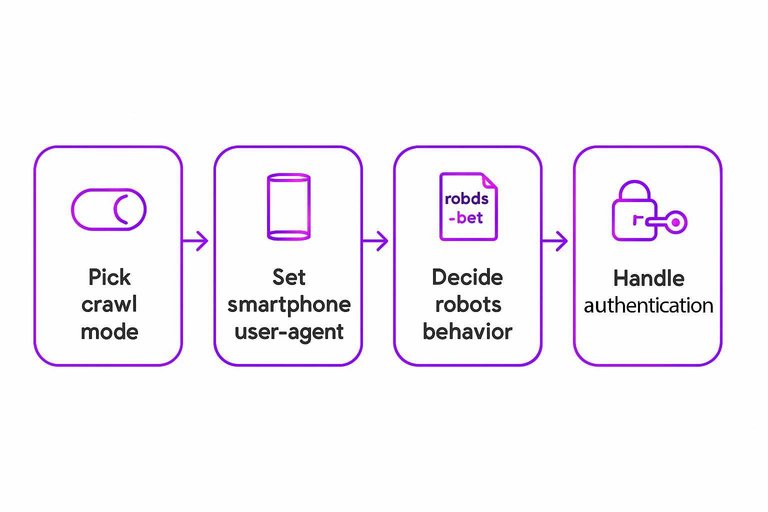
- Pick your crawl mode: start with HTML; switch to JavaScript rendering if your site relies on client-side rendering for links/content.
- If using JavaScript rendering, know what it’s doing: Screaming Frog renders pages in a headless Chrome (Chromium-based) browser and extracts data from the rendered HTML.
- Set user-agent to smartphone: choose a Googlebot Smartphone user-agent so your crawl matches mobile-first reality.
- Decide robots behavior (and record it): keep robots.txt respected for the “Google-parity” crawl; only ignore robots.txt for a separate diagnostic run.
- Handle authentication intentionally: either configure credentials so you crawl real content, or exclude login-walled areas so you don’t fill your dataset with redirect loops and blocked templates.
- Limit scope before you hit Start: constrain to the intended host/subfolder and exclude known traps (logout URLs, infinite parameter spaces).
Note the practical constraint: the free version of Screaming Frog SEO Spider is limited to 500 URLs per crawl, so plan your scope accordingly and export/snapshot your settings so the dataset is reproducible—and consider bookmarking resources to simplify SEO workflows to streamline repeatable audits.
Prove what Google sees
Your crawler is where you find problems; Google-native tools are where you prove them. Before you write a ticket for “blocked,” “not rendered,” or “missing structured data,” confirm the issue shows up in the same surfaces Google uses to fetch, render, and interpret pages.
URL Inspection workflow
Use Search Console’s URL Inspection tool to validate a specific URL the way Googlebot experiences it, including a rendered view (with a screenshot) and the ability to inspect loaded resources and JavaScript output.
- Open URL Inspection → “Test Live URL”. This checks the current fetch, not an older cached crawl.
- Open the rendered view (“View tested page”). Save the screenshot as evidence when a layout, content block, or navigation element is missing.
- Compare raw vs rendered HTML. If your crawler flags missing titles/canonicals/links, confirm whether they’re absent in rendered output or only in the initial HTML.
- Review loaded resources + JS output. When CSS/JS files are blocked, erroring, or timing out, this is where it shows up clearly.
- Attach artifacts to the ticket. Include the rendered HTML snippet (or the relevant diff), the screenshot, and the failing resource URL(s) so the fix is unambiguous.
For structured data issues, cross-check with the Rich Results Test, which supports JSON-LD, RDFa, and Microdata—so you can tell whether the problem is markup format, missing required properties, or Google simply not seeing the rendered markup.
Performance validation
CrUX (Chrome User Experience Report) is aggregated, real-user performance data used by multiple Google performance surfaces. Core Web Vitals are a defined set of UX performance metrics (including LCP, INP, and CLS) reported with thresholds.
| Tool | Data type | Use it when | CWV thresholds to reference |
|---|---|---|---|
| PageSpeed Insights (PSI) | Lab + field (CrUX) | Prove user impact vs dev test | LCP ≤ 2.5s; INP ≤ 200 ms |
| Lighthouse (Chrome DevTools) | Lab only | Reproduce and debug locally | LCP ≤ 2.5s; INP ≤ 200 ms |
| Search Console Core Web Vitals report | Field (CrUX) | Triage by URL group/template | LCP ≤ 2.5s; INP ≤ 200 ms |
If your crawl says “slow” but CrUX is clean (or the reverse), treat it as a data mismatch to resolve, not an argument—your backlog should reflect what Google can measure at scale.
Robots, sitemaps, crawl stats
- Verify robots.txt is reachable and complete
Requesthttps://yourdomain.com/robots.txtdirectly and confirm it returns a valid robots.txt file (it can be populated or empty) or a 404.
- Google requests
robots.txtfrequently, and if it can’t get an acceptable response it will slow or stop crawling until it can. - Keep the file under 500 KiB; anything after that limit is ignored, which can silently drop critical rules.
-
Confirm you’re using the right control for the job
robots.txtis a host-level file that controls what paths crawlers are allowed to fetch; it does not reliably keep a URL out of search results by itself.
If your goal is removal from the index, usenoindex—an indexing directive (meta tag or HTTP header) that prevents indexing when crawlers can access the page and see the directive—often delivered via theX-Robots-Tagresponse header. -
Validate XML sitemap constraints (and basic hygiene)
Open the XML sitemap URL(s) and confirm the XML is readable and uses absolute URLs (not relative).
- Keep each sitemap within 50,000 URLs and 50MB uncompressed.
- Read Crawl Stats as a “crawl control” diagnostic, not a vanity chart
In the Search Console Crawl Stats report, look for patterns that line up with crawl controls:
- robots.txt fetch problems (these can precede a crawl slowdown)
- shifts in response codes (more 4xx/5xx)
- sudden drops in total crawling
- Classify the failure: blocked vs overloaded
Treat it as blocked when robots.txt fetching is failing or a new Disallow is in place. Treat it as overloaded when Crawl Stats shifts toward server errors/timeouts. That classification decides whether you fix rules (robots/sitemap) or infrastructure (capacity/WAF/CDN settings) first.

Turn findings into tickets
SEO enhancements are the concrete changes that remove crawl/index/render/performance blockers so Google can reliably fetch, understand, and evaluate your pages. ChatGPT can turn exports into draft ticket text (repro steps, suggested owners, acceptance checks), but it can’t replace the evidence you collect from your crawl and Google’s own views. Apply the 80/20 rule in SEO by prioritizing the few fixes that eliminate whole classes of issues (template-level, robots/indexing controls, recurring performance regressions) instead of polishing one-off URLs.
| Ticket field | Evidence artifact (attach) | Owner | Acceptance + re-test (tool-tied) |
|---|---|---|---|
| Title + pattern | Crawl export rows; affected URL examples | SEO (triage) | Pattern confirmed; grouped by template |
| Root cause proof | Response headers; rendered HTML; screenshot | Dev | URL Inspection “Test Live”; issue gone |
| Scope + priority | Count by template; key URLs list | SEO + Eng lead | One fix covers majority of instances |
| Verification loop | Bot hits in logs (Screaming Frog Log File Analyser, US$99/licence/year); before/after samples | DevOps | Post-release crawl + live test; bot hits increase |
| Discovery trigger (optional) | IndexNow key file at /{key}.txt; submission payload | Dev | Key file returns 200; submit to https://api.indexnow.org/indexnow |
After fixes ship, Skribra’s Search Console-based monitoring and refresh workflow can flag post-change drops and route affected pages back into this same ticket format—especially when aligned to your broader SEO guide and best practices.
Audit what Google can verify
A technical SEO audit stops being a generic checklist the moment you treat it as a controlled test of two gates: crawlability and indexability—and you only get trustworthy answers when you have the access to prove which one failed. Set up your “source of truth” crawl to match Googlebot Smartphone, your real robots/auth rules, and—when the site needs it—JavaScript rendering, then separate any robots-ignoring run as diagnostic so you don’t contaminate the dataset. Before anything becomes a dev ticket, validate it in Google’s own views (URL Inspection’s live test, rendered HTML/resources, and screenshots; Rich Results Test; field vs lab performance) so you’re fixing what Google can actually fetch, render, and measure. Your first move is simple: secure Domain property + logs/CMS/CDN access, then run one reproducible Google-parity crawl and attach its artifacts to every ticket you ship.
Frequently Asked Questions
- Can ChatGPT do seo technical audits, or do I still need crawler and Google tools?
- ChatGPT can help draft audit checklists, write ticket text, and summarize exports, but it can’t replace the evidence step—your crawl data, Search Console URL Inspection, and logs are what prove what Googlebot actually fetched and rendered.
- How much does Screaming Frog cost for an seo technical audit, and what are the free version limits?
- Screaming Frog SEO Spider’s free version is limited to 500 URLs per crawl, and a paid licence costs 279 USD per user per year (1 to 4 licences).
- Should a technical SEO audit use Lighthouse or PageSpeed Insights for performance, and which one matters for seo technical?
- Use PageSpeed Insights when you want field (CrUX) data included alongside lab diagnostics, and use Lighthouse when you need a lab-only run you can reproduce while debugging locally.
- Is IndexNow worth using after a technical SEO audit, and how do you set it up?
- IndexNow requires hosting a {key}.txt file in the root of the (sub)domain, and you submit URLs to the global endpoint https://api.indexnow.org/indexnow so participating search engines can pick them up.
- What are “SEO enhancements” in a technical audit, and how do I turn them into developer-ready tasks?
- In seo technical work, “SEO enhancements” are concrete fixes that remove crawl, index, render, or performance blockers (for example: template-level canonical issues or blocked critical resources), and each task should include repro steps plus a re-test method tied to a specific tool (crawl re-run, live URL test, or log confirmation).
Ship SEO tickets that stick
Once your audit artifacts are reproducible, the bottleneck shifts to turning those findings into consistent, keyword-aligned fixes and pages without losing momentum between releases.
Skribra is an AI-driven SEO content system that plans, writes, publishes, and maintains articles on your site—then uses Search Console data to keep winners from slipping. Start with the 3-Day Free Trial.
Written by
Skribra
This article was crafted with AI-powered content generation. Skribra creates SEO-optimized articles that rank.
Share: