September 12, 2026
·
Updated October 28, 2026
·
15 min read
How to Check Keyword Rankings on Google (Free Methods)
A step-by-step guide to checking keyword rankings on Google for free: Search Console's Performance filters, a controlled manual search, Keyword Planner for demand, Google Trends for direction and URL Inspection for eligibility, plus a 9-point checklist.

The most reliable free way to check a keyword's ranking on Google is Google Search Console. Open the Performance report, filter it to the query, turn on Average position, then narrow it to one country and one device. It shows where your pages appeared in real searches, and it costs nothing for a site you own.
A manual Google search is still useful for seeing the results page itself, but only after you control personalization and location. And a position alone doesn't tell you whether a keyword is worth the work, so this guide also covers demand (Keyword Planner), direction (Google Trends) and eligibility (URL Inspection). It ends with a 9-point checklist you can run on any keyword.
What Checking a Keyword on Google Can Tell You
“Checking a keyword” can mean five different measurements. Decide which question you’re asking before you open a tool:
| Question | Free Google tool | What you get | Main limit |
|---|---|---|---|
| Where does my page rank for it? | Search Console Performance report | Average position, clicks, impressions and CTR per query and page | Only for sites you’ve verified; an average, not a live rank |
| What does the results page look like? | A controlled Google search | The live layout: AI Overview, ads, People Also Ask, competitors | One location, one device, one moment |
| Is it worth targeting? | Keyword Planner | Average monthly searches and ad bid ranges | Needs a Google Ads account with billing details; volumes are rounded |
| Is interest rising or seasonal? | Google Trends | Relative interest on a 0–100 scale | No absolute search counts |
| Can my page appear at all? | URL Inspection | Index status and the canonical Google chose | “On Google” means eligible, not ranking |
Before you open any tool, write down four settings and keep them fixed for every check: the country, the language, the device (mobile or desktop) and the date range. Google says results vary with location, language, device and time, so two checks with different settings aren’t measuring the same thing.
How to Check Keyword Rankings in Google Search Console
Google Search Console is free, it’s Google’s own data, and it’s the only source that shows where your pages appeared in real searches rather than in a simulated one. You need a verified property for the site. The six steps below take a few minutes per keyword.
Step 1: Open the Performance report and turn on Average position
Go to Performance → Search results. The report opens on the past three months with total clicks and impressions showing. Click the Average position card above the chart (and Average CTR if you want it) so the metric appears in the chart and as a column in the table.
Leave Search type on Web for normal rankings. Use the date filter to change the period; Search Console keeps 16 months of performance data. Collected data is normally available within 2–3 days, and the newest days are marked as preliminary (About Search Console data), so don’t judge a page on yesterday alone.
Step 2: Filter the report to your keyword
Click + Add filter, choose Queries, pick a match type and click Apply. Two match types do most of the work (Google’s filtering help):
- Containing keeps any query that includes your text. Matching isn’t case-sensitive but is otherwise exact, spaces included, so
check keyword rankingwon’t match “check my keyword ranking.” - Custom (regex) uses RE2 syntax and matches any part of the query unless you anchor it with
^and$. Three patterns worth saving:^check keyword ranking$keeps only that exact query.(check|find|see).*keyword rankcatches the variants people actually type.^(how|what|why|can|is)lists question queries, a quick source of FAQ and section ideas.
Choose Doesn’t match regex to exclude something, such as your brand name. If your property qualifies, the built-in branded queries filter does that job for you: an AI-assisted system splits queries into branded and non-branded, including misspellings of your brand. It’s only available for top-level properties (not URL-path or subdomain properties) with enough query volume, and Google notes some queries may be misclassified.
Step 3: See which page ranks for it
Keep the query filter on and switch the table to the Pages tab. Now you’re looking at the URL Google actually shows for that keyword, which isn’t always the one you wrote for it.
One page is the healthy result. If two or more of your URLs split the impressions, they may be competing with each other (keyword cannibalization). Decide which page should own the query, then merge or refocus the other.
Step 4: Narrow it to one country and one device
A position averaged across every country and device blurs the number you care about. Open the Countries tab and click your main market, then open Devices and click Mobile or Desktop. Clicking a table row adds it as a filter.
To see a difference directly, open a filter and choose Compare: two date ranges, two countries or two devices, side by side, with a Difference column. Google suggests weekly or monthly granularity for date comparisons to smooth out day-of-week swings. Only one comparison runs at a time.
Step 5: Read the position correctly
Average position isn’t “your rank today.” Google defines it as the topmost position any link to your site held in a result, averaged across the searches where it appeared. That has a few consequences:
- No impression, no position. A position is recorded only when your result was shown. A deep ranking that nobody loaded doesn’t count.
- AI Overviews and carousels count as one position. Every link inside an AI Overview shares its position, and carousels work the same way.
- Your own search may differ. Google says a specific search can show a different position because of search history and location.
- Be careful comparing across September 2025. When Google stopped supporting the
num=100results parameter around September 10–12, 2025, many sites saw desktop impressions drop and average position “improve” without any real ranking change, because fewer bot-driven deep-page impressions were counted (ZEO’s analysis).
Step 6: Reverse it to find every keyword a page ranks for
To answer “what keywords does this page rank for?”, remove the query filter, add a Page filter for the URL, and switch to the Queries tab. Sort by impressions.
Queries with plenty of impressions and an average position of roughly 8–20 are usually the cheapest wins: Google already connects the page to them. Queries the page is shown for but never actually answers are a good source of new sections. If you publish with Skribra, its Search Console insights show these metrics per article, and its Prospector agent adds sections for queries an article earns impressions for but doesn’t cover.
Google Search Central’s own video walks through the same report:
Why a Keyword Is Missing From Search Console
If a keyword you expected doesn’t show up, that doesn’t automatically mean you don’t rank for it. Work through these causes in order:
- It’s anonymized. Google leaves out queries made only a very small number of times, and ones that could contain personal or sensitive information. They still count in the chart totals, but they never appear as table rows, and a query filter drops them from the totals too.
- The table is truncated. Report tables show a maximum of 1,000 rows. On a larger site, low-impression queries fall off the bottom. A page or query filter brings them back into view.
- The filters or property are wrong. A leftover country, device or search-type filter hides data, and so does checking the wrong property. Our post on Search Console mistakes that hide search data covers the usual traps.
- The date range is too short or too new. A new page may not have impressions yet, and the last two or three days are incomplete.
- The page isn’t indexed. Then it can’t rank at all. Check it with URL Inspection (covered below).
When you need a complete, repeatable baseline, such as a before-and-after measurement or a client report, export the data instead of relying on the UI. Google points to bulk data export to BigQuery for the most complete list of queries, and the Search Console API can return more rows than the report tables. Neither one includes anonymized queries.
How to Check Your Ranking With a Manual Google Search
Search Console tells you where you ranked on average. A manual search shows what the results page looks like right now: whether an AI Overview, ads, a video carousel or a People Also Ask box sits above you, and which competitors you’re up against. To make the check worth anything, control the variables:
- Remove personalization. Sign out of Google, or turn off personalized results. When results are personalized, Google shows a “Try without” link in the footer that displays the non-personalized version without changing your settings. An Incognito window alone isn’t enough, because it still searches from your real location.
- Check the location Google used. The bottom of the results page says how your location was estimated: from your device, a saved home or work address, past activity, or your IP address (how Google estimates location). If that isn’t the market you’re checking, the ranking isn’t the one your customers see.
- Use Ad Preview if you have a Google Ads account. The Ad Preview and Diagnosis tool, in the Google Ads Tools menu, previews a results page for a search term with the location, language and device you choose. Google recommends it over searching for your own ad, which can skew your ad performance data.
- Match the device. Mobile and desktop results pages differ in layout and sometimes in order. Check mobile on a real phone, and note which one you used.
- Count the same way every time. Decide whether you count only organic links or every block on the page. Search Console counts an AI Overview or a carousel as one position.
- Save the evidence. Take a full-page screenshot and record the date, time, location and device with it.
Don’t automate this with your own script: Google’s spam policies list “scraping results for rank-checking purposes” as machine-generated traffic. If you need dozens of keywords checked on a schedule, use a rank tracker. Our comparison of Google website ranker tools vs manual checks covers the main trackers, their prices and why their numbers differ from Search Console.
How to search by only your keywords on Google
By default, Google also matches close variants and synonyms of your words. To check one exact phrase, or only your own pages, use Google’s search operators:
| Operator | Example | What it does |
|---|---|---|
| Quotes | "check keyword ranking" |
Exact match for the word or phrase |
| site: | site:example.com "keyword ranking" |
Only results from one site or domain |
| Minus | keyword ranking -free |
Excludes a word |
| after: / before: | keyword ranking after:2026-01-01 |
Pages last updated after (or before) a date |
| filetype: | keyword ranking filetype:pdf |
Only one file type |
Don’t put a space between the operator and the term: site:example.com works, site: example.com doesn’t. A site: search confirms Google has a page for a phrase, but it isn’t a complete list, so use URL Inspection to check a specific page.
Is the Keyword Worth It? Check Demand in Keyword Planner
A ranking check tells you where you stand. Before you spend time improving a page, check that the keyword has enough demand to justify it. Google’s own option is Keyword Planner, inside Google Ads. It isn’t free in the no-strings sense: Google says you must complete account setup with billing information to use its basic features.
It has two entry points. Discover new keywords suggests ideas from words or a website you enter. Get search volume and forecasts checks metrics for a list you type, paste or upload. Here’s how to read the main columns for SEO, based on Google’s metric definitions:
| Column | What Google says it measures | How to use it for SEO |
|---|---|---|
| Avg. monthly searches | Average searches for the keyword and its close variants, for the month range and location you choose | Rough size of demand; the numbers are rounded |
| Competition | How many advertisers showed on the keyword relative to all keywords across Google | Commercial interest, not organic difficulty |
| Top of page bid (low / high range) | About the 20th and 80th percentile of what advertisers paid for top-of-page placement, from the last 30 days | How valuable the traffic is to buyers |
The trap is the Competition column. “High” means advertisers want the keyword. It says nothing about the pages you’d have to outrank organically, so judge that from the results page itself. And search volume is an estimate in every tool, so compare keywords within one tool rather than across tools.
If you don’t want to set up Google Ads, Skribra’s free keyword research tool takes a seed keyword and returns up to 50 related keywords with monthly search volume, keyword difficulty, CPC and search intent in any of 8 countries, with no sign-up. For deeper research, our Ahrefs vs KWFinder comparison looks at two common paid options.
Check Direction and Seasonality in Google Trends
Keyword Planner gives you an average. Google Trends shows whether interest is growing, shrinking or seasonal, which tells you when to publish or refresh.
- Compare variants in one view. Add 2–5 close phrases (singular and plural, different word order) with the same country and date range.
- Check two windows. Use Past 12 months for upcoming timing, then Past 5 years to confirm a repeating seasonal pattern rather than a one-off spike.
- Read the chart as an index. Trends uses a sample of Google searches, normalized to the total searches for that place and time and scaled from 0 to 100. It shows shape and relative lift, not searches per month, and the same score in two regions doesn’t mean the same volume.
- Don’t overread a 0. Trends only shows data for popular terms, so low-volume searches appear as 0.
- Watch for noise. Google adds statistical noise to protect privacy. It’s most visible on low-interest terms, where a spike can be a random fluctuation.
If a keyword peaks at the same time every year, publish or refresh the page well before the peak, not during it.
Can the Page Appear at All? Use URL Inspection
When a page doesn’t show for anything, check eligibility before you rewrite it. Paste the URL into the inspection bar at the top of Search Console. URL Inspection reports on Google’s indexed version of the page: index status, crawl details and the canonical URL Google chose.
- “URL is on Google” means the page is eligible to appear in results. Google is explicit that it isn’t guaranteed to show for any particular query.
- “URL is not on Google” means it can’t rank until the problem is fixed. After a fix, run Test live URL, then Request indexing. Requests have a daily limit and don’t guarantee inclusion; for many new or updated pages, Google recommends a sitemap instead.
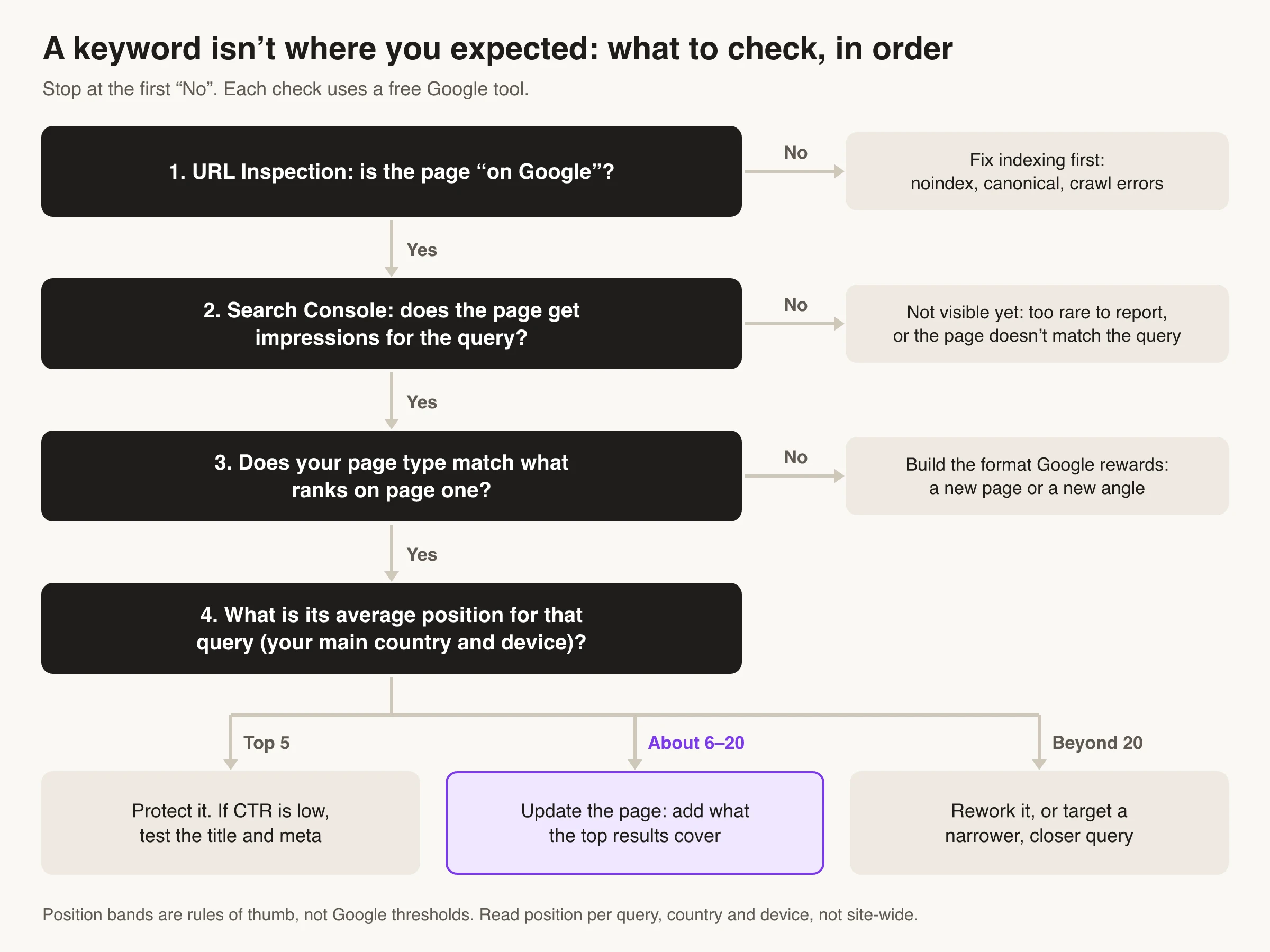
Our guide to pages that aren’t getting indexed works through the usual causes. Once the page is eligible, the rest of the diagnosis follows the same order every time:
Can You Check Rankings in AI Overviews and AI Mode?
Partly. In the standard Performance report, an AI Overview counts as one position and every link inside it gets that position, so a query where you’re cited in an AI Overview can show a strong average position.
Search Console also has a generative AI performance report, rolled out to all websites as of August 31, 2026. It shows impressions from AI Overviews and AI Mode over time, broken down by page, country and device. It reports impressions only and has no query breakdown, so it tells you which pages appear in AI features, not which keywords trigger them. To see whether a specific keyword shows an AI Overview, and whether you’re cited in it, run the controlled manual search above.
The 9-Point Keyword Check Checklist
Run these in order on any keyword. Each point relies on the one before it.
- Lock the context. Write down the country, language, device and date range, and use them in every tool.
- Confirm eligibility. URL Inspection shows “URL is on Google” for the page you expect to rank.
- Filter Search Console to the query. Use Containing, or a regex for variants, with Average position turned on.
- Check which page ranks. Open the Pages tab with the query filter on. One URL should own the query.
- Narrow to your market. Filter to your main country and device before you read the position.
- Rule out reporting gaps. If the query is missing, check filters, property, date range, anonymization and the 1,000-row table limit.
- Look at the live results page under control. Personalization off, location confirmed in the footer, exact phrase in quotes. Note what sits above the organic results and whether the search intent of the ranking pages matches your page.
- Size the demand. Read Avg. monthly searches and bid ranges in Keyword Planner as ad data, not SEO difficulty.
- Check the direction. Look at Google Trends over 12 months and 5 years to spot growth, decline or seasonality.
Decision: not eligible → fix indexing. Eligible but the intent doesn’t match → build the page type that ranks. Eligible and aligned → update the existing page, starting with the queries it’s already shown for.
Once a ranking is confirmed, look at the SERP metrics beyond a single rank check, such as feature ownership and CTR by layout, to see whether it turns into clicks.
Make Your Next Keyword Decision
A single Google search isn’t a ranking check. Fix your context, treat Search Console’s query and page filters as the source of truth, and use a controlled manual search only to see the results page itself. Then size demand with Keyword Planner and time it with Trends, without mistaking ad-auction data for organic difficulty. If the question is which keywords your competitors win that you don’t, that’s a different job; our guide to competitor keyword research walks through it.
Frequently Asked Questions
- How do I check my keyword ranking on Google for free?
- Use Google Search Console. Open Performance, then Search results, add a Query filter for the keyword, turn on Average position, and filter to your main country and device. To see the live results page, search while signed out and check that the location in the page footer matches your market.
- How do I find out which keywords my website ranks for?
- Open the Queries tab in Search Console's Performance report with no query filter. It lists the queries that earned impressions, which you can sort by clicks or impressions. To see one page's keywords, add a Page filter for that URL first. Rare and anonymized queries are left out, and tables show at most 1,000 rows.
- Why is my ranking different when I search Google myself?
- Results depend on your location, language, device and the time of the search, and on your search history when personalized results are on. Search Console's average position is also an average across every search where your page appeared, not a single snapshot. Sign out or turn off personalization, and confirm the location in the footer, before you compare.
- Is the average position in Search Console accurate?
- It's accurate for what it measures: the topmost position your site held, averaged over every search where it got an impression. Because it blends countries, devices and query variants, filter to one query, country and device before you treat it as a ranking. An AI Overview or a carousel counts as one position for every link inside it.
- How do I search Google for only my exact keywords?
- Put the phrase in quotation marks to get exact matches. Add site: followed by your domain to limit results to your own site, and put a minus sign before a word to exclude it. Don't leave a space between an operator and its term.
- Can I see if my page appears in AI Overviews for a keyword?
- Not by keyword in Search Console. Its generative AI report shows AI Overview and AI Mode impressions by page, country and device, but not by query. To check a specific keyword, run a controlled manual search and see whether your page is cited.
Turn Keyword Checks Into Page Updates
Skribra connects to Google Search Console and shows clicks, impressions, CTR and average position for every article it publishes, with up to 16 months of history. Its agents act on that data: Prospector adds sections for queries an article is shown for but doesn’t answer, and Hook rewrites titles and meta descriptions on pages with high impressions and low CTR.
Plans start at $19/month, and every plan comes with a 3-day free trial. The $75/month Pro plan is the one that runs all five maintenance agents on every article.
Written by
Skribra
This article was crafted with AI-powered content generation. Skribra creates SEO-optimized articles that rank.
Share: